Labels

Showing posts with label iPad. Show all posts

Friday, 26 September 2025

Digital Picture Frame

Status

I have had some success in the past setting up digital picture frame applications.
My principal web-based slideshow app allows me to look through art images and includes a description/opinion on the art.  A modified version dispenses with the writing and just displays images - it is particularly aimed at the iPad.


I have also used  and blogged the iPad Pixette app which displays full screen pictures randomly from a folder on my picture database server.
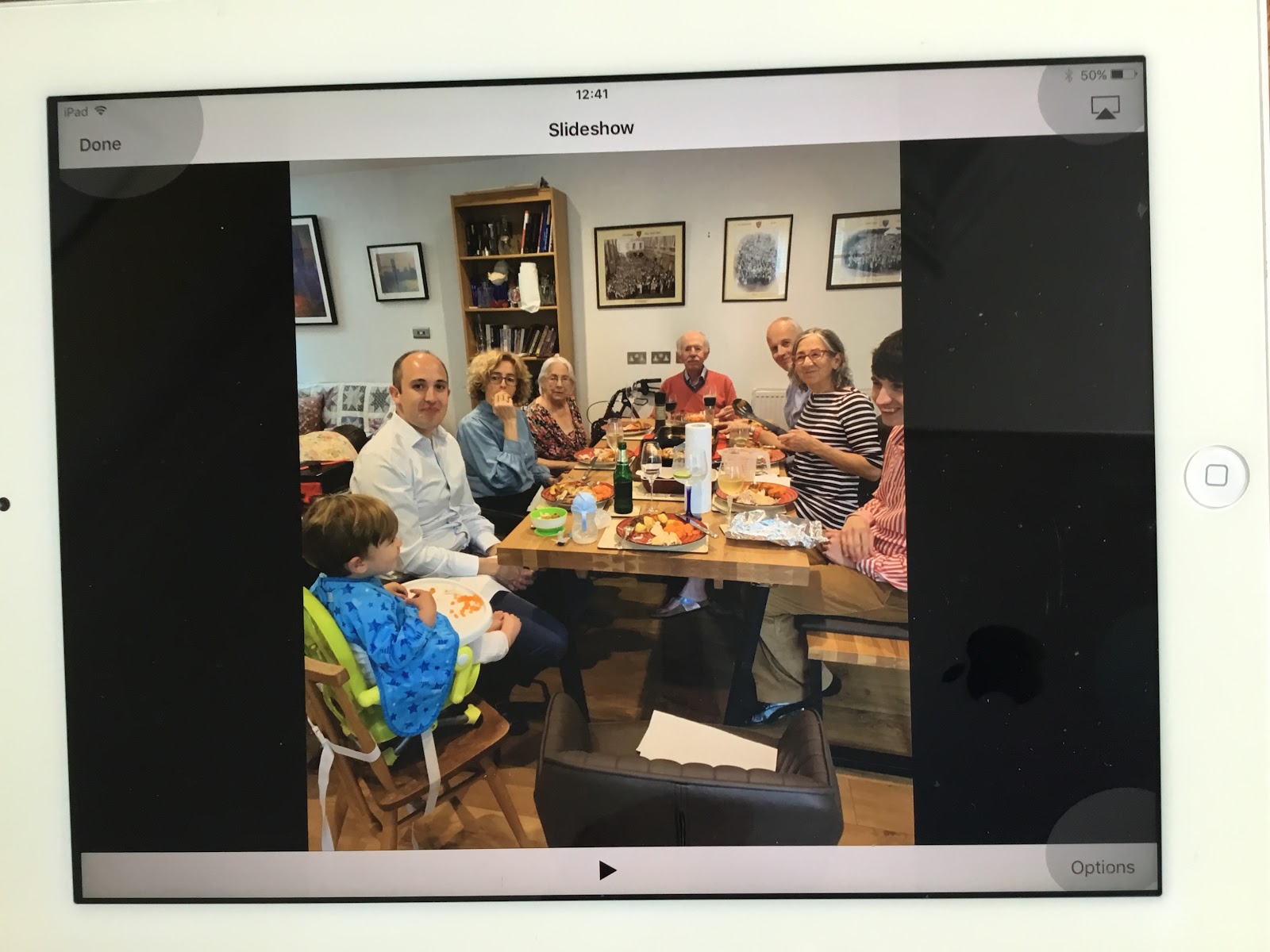
Finally when investigating uses for old iPads I setup a slideshow in the Apple photo app (or LiveFrame) using shared icloud photo albums.  This has been used mainly to show Annette's aged father images of the family and places he may remember.

I feel that all of these are successful but I dont use them regularly.  Somehow I need more.

Typically I will use a DPF to view art, I wont be concentrating on the screen all the time, just dipping in and out when something attracts my attention.  I should evaluate some different solutions and see which one I use in practice.

Parameters

DPF output could be displayed on the lounge large TV, study small TV, computer monitor or iPad.
If a dedicated iPad is required it should preferably an obsolete IOS9 device.

An iPad is a natural choice to create a slideshow, possibly mirrored / cast to a TV screen.  It may be worth considering some sort of RPI solution which is output to a monitor or TV.

Preferably images should be used from my database server.  It is also preferable that the existing labelled low resolution images should be used.  Saving images on iCloud may be acceptable.

It should be easy to choose, start and change the slideshow which is displayed.  I should be able to pause the show.  Images must have simple artist information to be interesting.

Option 1 : Pixette app on newer iPad and large TV

+ existing low resolution images on database server can be used
+ image file name gives approximate author and title details
+ The full screen is used and image transition is smooth
+ "image enhancement" makes low res pictures look good on a big screen
+ slideshow starts as soon as app is loaded
+ same app works for both iPad and large TV (with screen mirroring)
+ app and images are already in place and working
- can only display pics in random order
- picture selection is based on choosing to include/exclue folders on settings screen
- app no longer works on oldest IOS9 ipad


Option 2 : Use old iPad and Apple Photos / LiveFrame /SoloSlides

+ Can choose to display images in time order.  Less randomness useful for multiple folders
+ apps are already in place
+ screen displays pictures full screen
+ it is easy to add images to shared icloud folder for display
- uses iCloud storage - images may not fit my free storage
- lots of work to setup new database of hi res images with meaningful file names
- artist / title not available using Apple photos
- old iPad doesn't allow mirroring to large TV


Option 3: Improve Slideshow app fullscreen capability

I have previously modified the slideshow app to remove image description / analysis providing more space on an iPad screen for images.
However the Google / Safari browser headers are still displayed detracting from the "full screen" objective.  In additon the screen includes a title line (which I probably want to keep) and a menu bar (which I may remove).

The first issue to resolve is the removal of browser headings.  On Windows Chrome allows F11 to make an image full screen, however this isn't possible using Safari/Chrome on an iPad.
There is a workaround using a deprecated <meta> tag
If you add the meta tag to a web page and save a link to that page on your safari homescreen then you see a nice slideshow without an address bar at the top which looks a lot better.

+ works on iPad3
+ it uses existing image database
+ can cast using iPad7 to a suitable TV
+ proper artist / title information
+ By saving iPad homescreen icons, can choose ALL galleries in a group
- It isn't quite a fullscreen app
- It is a bit fiddly to setup icons for all the desired galleries

This solution works both on iPad3 and iPad7.  I cant easily cast the iPad7 screen to my (old) Small Samsung TV in the study, even using its Chromecast stick, but I did try an app called Screen Mirroring for Chromecast which will display the slideshow on the Study TV.  I feel it works well, the TV is easy to ignore and unobtrusive but the pictures look good.  It is probably that we are conditioned to ignore TVs more than iPads which we are holding.

Conclusion

Both options one and two are good applications.  Pixette is too limited for art because of its random display.  Apple Photos and related solutions cant easily display titles and require much work to fully setup.
Option 3 is good enough to be practical, I just need to setup icons for each image gallery I want to view.  In addition, if I use iPad7 the slideshow looks good on our large Samsung TV.

I did rather like looking at the slideshow on my small Study TV.  Another option I wanted to consider was an RPI application using Study TV as an RPI screen.  So far, investigations indicate that this is quite feasible and I will blog the results separately.


Tuesday, 15 October 2024

Pixette SlideShow + Webdav

 Aim

My Art Gallery picture slideshow web application works very well, allowing me to look at pictures together with their descriptions and my comments.  Occasionally, I would prefer to see an iPad slideshow of the pictures full screen, with the minimum of borders / distractions.

The pictures are held on an RPI Samba shared folder and it would be easy enough to copy them across to my iPad and view them in Apple Photo or LiveFrame which I currently use.  However it doesn't seem right to do this when I already have the photos available, both on a shared folder and available as web URLs.

For some reason I found it difficult to find an iPad app that would access pictures on a shared folder and allow me to look at them in a slideshow.

Lighttpd web server

After searching Pixette appeared to be popular app, which might allow me to view shared folders collections on "NAS".  I thought that my RPI with shared folders qualified as NAS but apparently proper NAS devices have their own system software (e.g. Synology) - to allow proper file-sharing, multiple users etc.
However Pixette does support Webdav devices and I found that my web server lighttpd can be configured for webdav. I followed a guide fom Haven200 which explains how to setup lighttpd for webdav.
Unsurprisingly you need to install a couple of lighttpd modules and configure lighttpd.conf details.
You also need to make sure you have a password file available (I used htpasswd for simplicity)


After completing these steps it is possible to see my art directory structure

Configure Pixette

It took me a little time to get webdav working but once I had a URL I simply entered the details into Pixette, indexed files and sat back to watch my slideshow


Verdict


Pixette is an excellent tool which gives a proper full-screen slide show experience.  Of course the iPad has a high quality screen so the pictures themselves look great.  Pixette is intended as a digital picture frame and it shows pictures in a random order but that isn't much of an issue.

webdav is actually intended to allow you to make updateable pages, so I could probably experiment with that idea separately.  I recall that when Tim Berners-Lee initially setup his web server he intended web pages to be writeable so webdav is truer to the original idea than most.


Friday, 20 September 2024

Improve iPad music

Intro

During the summer I am away more, often without access to wifi or internet.
It is convenient and enjoyable to listen to local music on iPad using the Apple Music app.
However it is inconvenient to update my iPad music by connecting to my PC and using iTunes to add/remove music.
The consequence is that my iPad music is often outdated; it contains albums I don't really listen to and doesn't include current favourites.

Ideas

Apple Music
Apple Photos works well with iCloud, allowing you to look at shared pictures on a range of devices.  I hoped Apple Music might provide similar functionality but it will only sync music if you have an Apple Music subscription (£11 pcm).

iCloud
iCloud looked like it could be part of the solution.  Files can be moved to and from iCloud using iCloud Drive on Windows, Apple Files on iPad or a browser to access iCloud.com.  Free storage is limited to 5GB but 50GB can be added for £1 pcm.
When  you access an iCloud folder your view is synced so all users see the same set of files.  Unfortunately this feature does not include the capability to physically synchronise copies of file onto the local device.  You still need an internet connection to access the files.

Files
Apple Files can access music on the local drive, iCloud or a network share.
Double-clicking on a music file causes it to play within the Files app.
This is interesting but not a practical solution, unless playlists can also be started within Files (I didn't investigate).

VLC
VLC is able to play music directly from iCloud but it would still require an internet connection.

Doppler

A reddit post I saw mentioned that a music player app called Doppler may help with my requirement.  After trying out its features I invested £9 in purchasing it.

Like many music player apps Doppler has a music library.  You can import music to this library from a variety of sources.  I particularly liked the help text Doppler provided explaining various download methods.  Music can be imported from, for example:

1)    local hard drive
2)    iCloud
3)    network share
4)    Apple 
Music storage

This functionality provides a solution to my requirements.
I started off by importing all the albums from my Apple Music
I then select any new albums I want from my PIP Music database.
As albums are easy to download I can remove ones I don't listen to much and re-add them later if my mood / tastes change.
Once albums are imported I can listen to them without wifi or internet access.
I don't need to use iTunes or even iCloud to make this work

The screen shot below shows the Apple files app which is accessing the pipmusic folders on my PIP NAS.  I can select an album the "share" it with Doppler to add it in.

As I can access PIP if my iPad is connected to  wireguardVPN, I dont even need to be at home to add music to the iPad.

Xcode

 Intro

I have been thinking about potential approaches to, and uses for, executing programs on the iPad.  I previously investigated, briefly, the idea of running a webserver on my iPad. Although the idea seems good, I wasn't convinced a webserver provides a good environment.

The preferred Apple route for iPad programming is actually to develop a cross-platform app using the Apple Xcode IDE running on my macBook and to deploy the completed application to the iPad. Apple are restrictive regarding installing iPad apps and this approach avoids such issues.

Installation

Xcode is a large, free application (6GB or more) which provides a range of languages to write programs for different Apple devices.  It can be installed to a macbook from the app store. I included the IOS components as my target environment is an iPad.

macBook PoC

My preferred programming language is C and I found a simple tutorial to get started with C in Xcode. I created a command line project within Xcode and it gave me a skeleton "Hello World" program as a template.  It is easy to build and run this within the IDE, giving output at the bottom of the screen.

You can then run the C executable generated on a macBook terminal session.


IOS PoC

Next I want an app which will run on the iPad.

I found a couple of youtube tutorials to guide me through the process.  The first one, from CodewithChris , provides a detailed intro to the IDE.

The second from IOS Academy goes into less detail and provides a nice simple emoji display app - I followed this tutorial mainly.

Both the tutorials use the SWIFT interface and the SWIFT programming language, which is very powerful and is preferred for Apple development.
An alternative is to use the older Storyboard interface and SWIFT or Objective-C programming language.

Selecting IOS app in the new Project dialog and choosing the SWIFT interface I was presented with a draft hello world app.  I could build and run this app in the built-in simulator to get an idea of how the app will look on an iPhone/iPad.


I followed the IOS Academy tutorial to create a simple app "EmojiLover".  It allows you to choose from a selection of icons and display on the screen.

The code is explained very well to give some understanding of programming using the Swift language.  SWIFT is a powerful Object Orientated language, and it would take a concerted effort to become fluent in it.

There are some interesting features, notably including Emojis as pictures in the code.  The rest of the code is pretty incomprehensible without understanding the objects making up the User Interface and Program.

The result is very good.  You can see a preview of the code whilst programming and can periodically run the simulator to see how it will look on the device.


IOS Download

The IOS Academy tutorial didn't cover testing the app on an iPad/iPhone so I looked at CodeWithChris.

The first step is to connect the iPad and macBook.  My usb-c  to lightning cable didn't appear to work (no device was seen by macBook) so I  purchased a new usb-c adapter cable which worked a treat.

There were a few compatibility / security issues to resolve before the iPad and macBook were working together:
1) My Xcode environment had to be set for IOS16 to match the iPad
2) I had to enable Developer mode on my iPad
3) In iCloud I had to setup a Personal Account and keychain for the macbook to access the iPad.
4) On the ipad I had to allow user j200@helliwell.org on macbook access to the iPad.

Once macBook and iPad were happily communicating I could tell Xcode to build the app for my iPad and after a slight delay the iPad shows my completed app 😀😀😀


At this stage you can disconnect the iPad from macBook.  An icon is created on the iPad home page which you can use to run the app again.

Unfortunately, unless you have an Apple Developer license ($100pa) Apple only allow you to use it for a week - then you have to reinstall.  This negates the purpose of using Xcode so I wont progress further.😭


Monday, 5 August 2024

iPad Web Server

Concept

I wondered if it is possible or useful to have a web server on my iPad.

Generally speaking you can only run Apple approved apps on an iPad.  There are thousands of them, so the purpose of a server should not duplicate any of them.
There are only a few web server apps available on the App store and the only one which looks reasonable is "WorldWideWeb - Mobile"  

It is aimed at developers, possibly for when there is no internet access.

Trial

I installed the app.  I also installed a simple text editor so that I can create web pages.  I then setup a folder "www", created a simple index.html and started the server.  The app includes a browser so I could look at my page locally.  As www-m supports Bonjour it gave me a URL http://john-ipad5.local:8080 which allows me to access the page externally.
So the answer is yes! I can easily setup a functional website for my iPad.

Uses

I could set up a simple web page to determine which web sites are available.   If there is no wifi access this will be empty but it is better than a page not found error message.  At home or with VPN enabled my local sites will be seen.  On the internet my "official" web site will be available.

By default www-m is "sandboxed" and doesn't give you access to any local resources.  It should be possible to give myself access to my music folders.  I would like the ability to sync iPad music with (some of) those on my home music server.  This would give me a "mobile" music server.  It would be  also be possible to make this accessible to other people nearby using the web interface.

There seem to be more web servers for Android so it may be better to experiment with such an app on my phone, providing I dont have to edit files directly using the phone keyboard.  A suitable candidate is 
simple web server .  This would be excellent for the "car phone" - which is an old Samsung smartphone containing music for car listening, since the new car has no CD player.

Alternatives

It also occured to me that, if I want some sort of programming capability on the iPad, python would be a good candidate.  The principal Apple app is Pythonista.  It appears to have plenty of libraries allowing access to iPad hardware / features.  One downside is that it isn't straightforward to set up a home screen icon for python apps, but it probably is possible using PWA (Progressive Web Apps).  These run in a browser for you.  An excellent example is the Rubik cube which looks like an app but runs without installation.

Conclusion

I like these ideas, I don't have a strong enough urge to set it up now but maybe sometime ....


Monday, 22 April 2024

What else I did with an old iPad : Hifi remote control

Rationale

I chose to setup my 2012 iPad mini 1st generation as a dedicated Hifi remote control.  The hifi comprises a main  Denon amplifier/tuner togther with some Pure Jongo and Sonos options.
Although Denon, Pure and Sonos all provide iPad apps, none of them are compatible with the iPad mini1.  This is not a serious problem as the apps don't make it quick or easy to select and play albums so I have developed my own web app which allows me to control Denon and the others pretty much exactly as I want.

I can, of course use a PC, Android or iPad with the web app; this was one reason to develop it in the first place.  However I found that other people are unlikely to bother going to a URL on their devices to choose music.  Everyone finds it much easier just to pick up the iPad mini which is always setup for music playing.

Ease-of-use

I bought an iPad mini cover which allows us to turn the iPad on/off by opening/closing the cover and bypasses the lock screen, making the remote control effectively always on - like a remote should be.


I can also set guided access so that the web app is always displayed and avoid the possibility of exiting the browser or changing the page. 

Old software considerations

As my browser is restricted to Safari v9, which comes with iOS9, there are a few html and javascript commands which cannot be used as they weren't implemented by Apple until later versions.
Typically, when developing the web app I found it worked on PC (Chrome) or iPad (Safari 16) but not the iPad mini so I had to find an alternative solution which wasn't a difficult task.

When choosing an artist / album to play I highlight the item by changing its class from "songlist" to "active".  JS now includes a replace() method to change a class associated with an element.  However on SafariV9 you must use remove() and add() methods instead.

My track list folders often include album art .jpg files which are displayed as tracks unless I omit them.  There is now a include() method to determine whether a substring exists within a string.  However, for Safari9 I need to use the indexOf() method instead which isn't so neat.

Conclusion

I do have a tendency to be more interested in the technicalities of a solution rather than usability.  The two old iPad projects are both simple, but tend to be used more than other, cleverer ideas.


Thursday, 11 April 2024

What I did with an old iPad : dedicated photo album

Three months ago I wrote about possible uses for two old 2012 ipads.  In my opinion the iPad hardware is "as good as new"; they have high resolution screens, wifi/internet access, good battery life, and dont feel slow to use.  Unfortunately the last system software update was iOS9 and there are very few app store programs which can be installed on the OS. 

I have found real, practical tasks for them which will provide a few extra years of use.  The first of these is as a dedicated photo album, setup specifically for an elderly (late 80s) relative with memory issues.  The key requirement is to make both hardware and software aspects of "the album" simple and foolproof.  In addition, a dedicated device is always available and doesn't need to be started / configured / tweaked each time it is used.

I used a TechRadar article as a guide for this setup.  There is actually a slideshow app liveframe which is intended to work on old/obsolete iPads and can still be installed.  Also iOS9 contains the Apple photo app which continues to work well.  I found the Apple app slightly easier to use in a simple manner so I choose to use this for my album.

Using photo or liveframe, a set of photos can be collected into an album and played in a slideshow.  For my purposes, since wifi is available where the iPad is to be used, I set the album up in iCloud.  The user has dementia and finds a single set of family phots interesting and entertaining.  There is no need for him to watch different albums.  It is straightforward to add extra photos to the album using iCloud if required.

Initally the photo album stopped working due to buttons / controls being pressed accidently whilst holding the iPad.  For example touching the screen could cause a confusing screen message or pressing the home button would exit from the app.
I used the Apple Guided Access accessibility feature which disables iPad buttons and prevents the user accessing selected parts of the screen.  As you can see on the screen shot below, the areas of the screen allowing the user to exit, cast or change options (which they may press by mistake) are greyed out which means they are disabled.


One of the buttons which it is useful to disable in Guided Access is Power.  It is easy to accidentally touch the button and turn off the iPad.  You then have to click the button to turn it on, swipe to open the home screen and start the app once more.
An elegant solution is to disable power button use in Guided Access and to use a genuine Apple magnetic cover, setup so that opening / closing the cover turns the iPad on/off.  This prevents the lock screen showing and keeps the photo app active as soon as the screen is opened.
Guided Access is configured so that no buttons are accessible and only the area of the screen allowing swipe left or right is available.

With these arrangement in place the iPad photo album becomes a simple and enjoyable pastime for an older person.  It doesn't need ot be setup each time is is use and the user only needs to know how to open the cover and swipe to change the current photo.  I am very pleased with how much enjoyment it brings.

Monday, 8 January 2024

What to do with an old iPad?

How old?

I have an iPad and an iPad mini which were in occasional use recently by aging relatives:

  • third generation iPad model MD328/A1416 (16GB, 9.7" screen)
  • first generation iPad mini MD528/A1432 (16GB, 7.9" screen)

Both models were first marketed by Apple in 2012, so they are really old in computer terms.
Both appear to be working well with acceptable battery life, however their software cannot be updated from iOS 9.3.5, iOS 9 was released in September 2015.  It was superceded by iOS 10 a year later and the current version is iOS 17.

Owing to their old software they have no real value, even on eBay, and worthy causes are not interested in them as a donation.   I am reluctant to dispose of them and I have been thinking how they could be useful.

Which apps can be installed?

The short answer is that existing apps should continue to work but practically nothing on the Apps Store can be installed on iOS9.
  
The apps store normally only allows recent versions of apps to be installed  and they are all post 2015.  The one exception is that, for apps which have been previously purchased / installed, an old version can be downloaded.  This provides a loophole which can be exploited: purchase or install a new app on your newer iPad then go back to the old one and install an older version, if it exists.

A third option is to jailbreak the iPad so that you can install apps from (possibly dodgy) non-Apple sources but I that is a slightly different subject so I wont investigate at this point.

It seems unnecessarily restrictive for Apple to prevent downloading old versions, but to be fair, this is ten year old software and hardware so it is unlikely that you need apps that you havent needed in the last ten years.

Which apps work?

Even if an app is installed on the iPad, it may not work properly.

Apps which are included with iOS9 appear to work well (Safari, camera, iBooks, photos for example).  If an app is purely local and doesn't require internet functionality it should work.  I had a few old games (The Room, Sudoku, Labyrinth and Candy Crush) which are ok.  

Apps using local networking (Heos, webSsh, Unix-Reflection, Pure Connect) may work and some  which use the internet are available.


To get an idea of which apps I can potentially use I went through the list of purchased apps on the App Store and tried to install them all on the old iPad.  I started them up and ran some quick tests.  A number of apps, including Chrome, failed at this stage, as they carried out internal checks and decided they needed (unavailable) upgrades to use.


At the end of this exercise my ipad has extra apps shown to the left.  The main apps which use media are likely to be the most useful: vlc (video), photos and LiveFrame (slideshows), safari (for browsing and my local web pages), Heos, iPad Music and Pure (for music control).

There is no file manager function available on iOS9 but it does include iCloud so you should be able to play music, videos, photos etc. and store them locally within applications.

In summary, although the choice of software available is very limited, we do have most of the functionality we may need.  If an extra function is required, I can search the web for suitable iOS9 compatible apps.

Potential Users

I already have a decent, newer iPad 5th generation MPGC2B which is a great tablet, although it has just stopped receiving upgrades (it is still on iOS16), so an older heavier iPad isn't going to be an acceptable substitute for me.  If I do use an old iPad it is likely to be dedicated to a single function, watching movies, controlling the music player or home automation.

Alternatively, the iPad could be useful to someone who currently doesn't have their own.  My elderly father-in-law Roy may like to use it as a family photo album, to help with his memory.  Grandson, Harry Junior might like his iPad to watch youtube videos or play childrens games.  Again they are likely to use for a single app rather than a general purpose device.

The iPad and iPad mini have great quality screens and good sound so they are very suitable for any audiovisual media: music, videos, photos, books.

By switching the iPad to never auto-lock, it retains the last application screen when you start to use it.  This minor configuation change makes quite a large difference; say when resuming a video, you can just turn it on and continue to watch, without all the faffing around of starting the app and finding the right place.
Similarly, for an audio controller it is almost as easy as a remote control, just turn on and your control screen is in front of you.

Potential Uses

1    Photograph slide show

Either the Apple photo app or LiveFrame can provide an ongoing slide show.
The show can be made continuous and the photo collection can be as large as you like.
Suitable for an elderly relative.

2    YouTube web

As a dedicated YouTube player, the iPad is very easy to use without adult assistance.
Suitable for a young child

3    ebook reader

I typically read a single book at any given time and there is a plentiful supply of ebooks and pdf documents to read.  The app provided by my local library for online reading also works.

4    Video player

The excellent quality screen is perfect for playing videos with VLC.
As usual, dedicating the device to this function makes it much easier to pick up and put down current viewing.

5    Music Controller

The iPad mini makes a very good smart remote control.  I have web pages to control my different sorts of music and if I leave the iPad mini lying around it is actually more convenient than a remote.  The only downside is to periodically plug it in when not in use.  My web pages also work on peoples phones but it is easier to pick up a small device than starting your browser and choosing an appropriate link.

6    Game Player

I dont often play games, but if an old iPad feels like an entertainment centre I may reach for it to play a game (or watch a film, read a book etc).

7    Home Automation Controller

This is a very good new / developing area for me.  Although the iOS9 doesn't support Home Assistant it may be possible to set up as a central control device.

8     Linux terminal

When working on a variety of linux tasks, it would be useful to have a dedicated virtual keyboard/screen for "headless" systems.

9    6502 Console

This is likely to be a rare but sexy usage to provide a screen and keyboard for my 6502 system.

10   Jailbreak

An old redundant iPad would be ideal to see how easy / useful it is to jailbreak a device and whether it makes a big difference to what you are able to do with it.


The trouble with bright ideas is that they may never be used.  Rather than choose one of the above functions I may play with a variety and see if any of them are properly useful.

Conclusion

I started off thinking it is a shame that good working technology hardware needs to be thrown away to be recycled.  After this exercise I am hopeful to extend the life of the iPad-3 and iPad mini-1 for a couple more years.

I will be very happy if I do find a proper use for these little gems.  There may be a future blog post describing any successes.